How to Highlight Verses on iPhone: The Tap Sequence and the System That Makes It Stick
How to highlight verses on iphone — the exact taps in YouVersion, Olive Tree, Bible Gateway, plus the color-coding system that keeps highlights useful.
Quick Answer
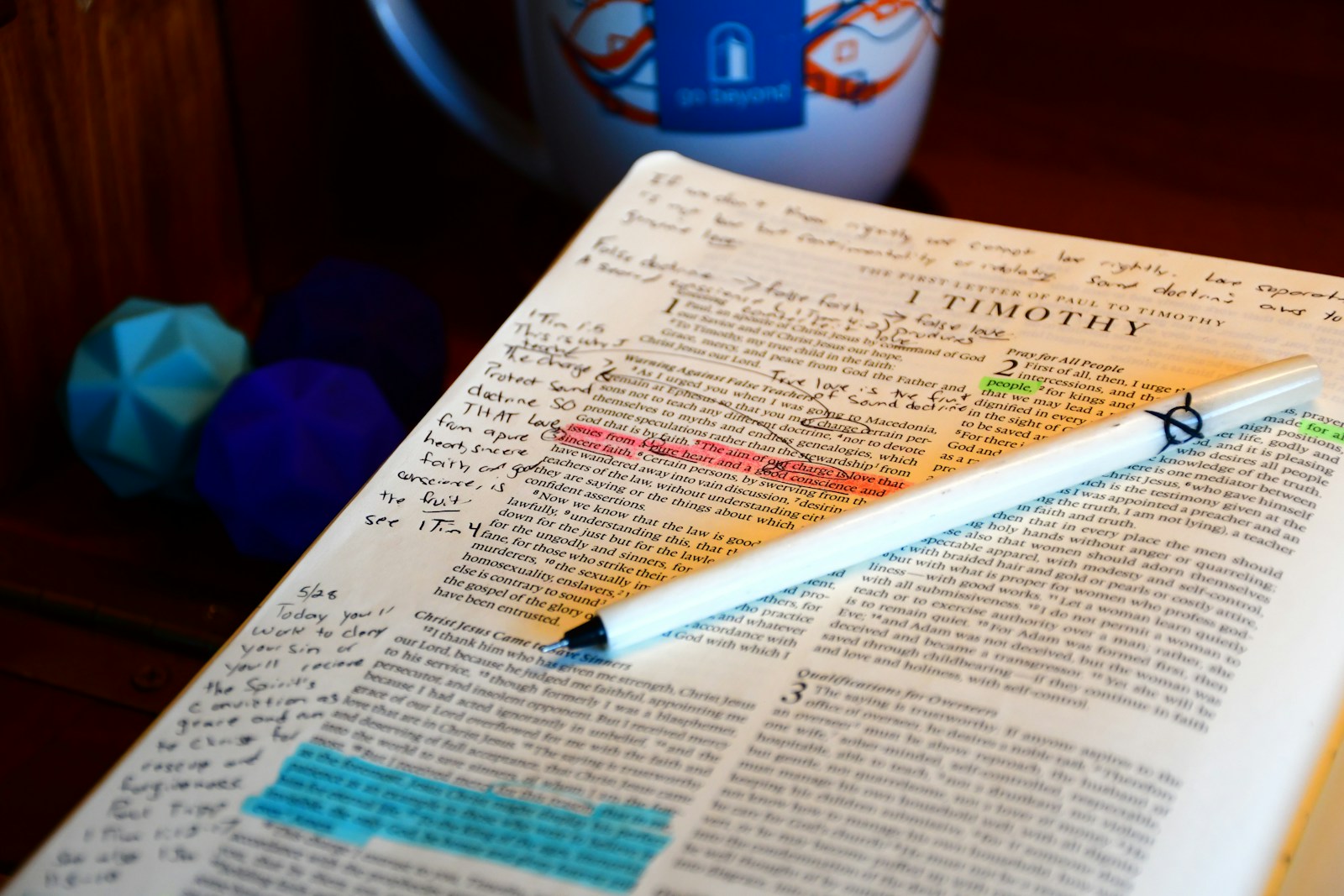
To highlight verses on iPhone in YouVersion: tap a verse number, then Highlight, pick a color. Olive Tree: long-press a verse, tap Highlight. Bible Gateway: long-press, drag selection, tap Highlight. Across all three, the easy part is making the mark — the hard part is making sure you ever see the highlighted verse again.
How to highlight verses on iphone is one of those searches where the literal answer takes thirty seconds and the useful answer takes a system. Every major Bible app has highlighting — YouVersion, Olive Tree, Bible Gateway, Logos, Dwell. They all work roughly the same way. What separates someone whose highlights actually do something from someone with 400 forgotten yellow lines is everything that happens after the tap. FaithWall is the only app built to close that gap: it turns your best highlight of the week into a lock-screen verse you can't help but see again. Here's the tap sequence for each app, plus the small system that keeps highlights from becoming digital underlining you'll never re-read.
The exact taps in the three apps people actually use
YouVersion (Bible.com) — the most-used by far. Open a chapter. Tap the verse number once. A toolbar slides up from the bottom. Tap the highlighter icon (the marker). Pick a color from the row of swatches. Done. To remove: tap the verse again, tap the highlight, hit the trash icon.
Olive Tree — for deeper readers. Long-press any word in the verse. A selection menu appears with handles you can drag to select a longer span. Tap Highlight in the popover. Pick a color. Olive Tree's highlights sync to your account and export to a Notes panel — the cleanest highlight library of the three apps.
Bible Gateway — fewer people use the mobile app, but it works similarly. Long-press a verse. Drag the selection handles to widen. Tap Highlight → pick a color. Bible Gateway syncs highlights across the web app and iOS — useful if you read on both. For broader app comparisons, see the best free Bible app for iPhone post; if you're building a reading rhythm around what you highlight, the one-year Bible plan for iPhone pairs well with a color system.
A color-coding system that actually works
Most people pick colors at random. By month two, every chapter looks like a rainbow and no color means anything. The fix: assign meaning. Pick four colors max — more is a maintenance burden. For where highlighting fits into a fuller iPhone Bible-study setup, see the bible study tools pillar guide.
Yellow — promises. "He is with you." "Cast your cares." Anything that names a covenant or commitment from God.
Blue — commands. "Do not fear." "Love your enemies." Instructions to act, not feel.
Pink — character of God. Verses describing who He is — merciful, jealous, patient, holy. The slow-cook of theology.
Green — application notes. Verses that hit you personally on a particular day. Pair with a journal note for context.
Tip
Write the legend on a sticky note inside your phone case. Color systems collapse because you forget which color meant what. Three months in, you'll add green to a verse that should've been pink and the whole system unravels. The sticky note prevents the drift.
Where this gets hard
Here's the real problem with iPhone highlights: you almost never see them again. You highlight Psalm 27:14 on a hard Tuesday, and unless you specifically go back to Psalms 27, that mark just sits there. By the end of the year you might have 200 highlights scattered across 1,189 chapters. The Bible app stores them; your brain doesn't. The whole point of a highlight is supposed to be the retrieval, and retrieval rarely happens.
Three things help, in order of cost. (1) A weekly highlight review — five minutes every Sunday, scroll your highlight log, re-read three. (2) A spaced-repetition memorization app — see the Bible memorization apps for iPhone roundup for which ones work. (3) An exposure layer that puts the highlights you cared about most in front of you without you opening anything. That's where a lock-screen verse setup compounds — your most-meaningful highlights become wallpaper, so you actually re-encounter them in the moments you needed them.
"I have stored up your word in my heart, that I might not sin against you."
The psalmist's verb is stored up — not underlined. Highlighting on a phone is the start of storage, not the substance of it. A highlight is a bookmark for future encounter. If the future encounter never happens, the bookmark was for nothing.
The five-step highlight loop
The loop that keeps highlights from going stale has five steps: mark it in the moment, color-code it by meaning, add a one-line note to the personal ones, review weekly, and promote the week's best highlight to your lock screen.
- 1
Highlight in the moment. Don't over-think — if a verse hits, mark it. The friction has to be near-zero.
- 2
Color-code by meaning. Four colors, one legend, no exceptions. (Promises / commands / character / application.)
- 3
Add a one-line note for green (application) highlights. Future-you needs the context.
- 4
Weekly review. Five minutes every Sunday — open the highlight log in your Bible app and re-read three.
- 5
Promote one per week to your lock screen. Turn the highlight that mattered most into a daily-rotation wallpaper for seven days.
Step 5 is the difference. Steps 1–4 are how most readers handle highlights. Step 5 — turning the week's most-meaningful highlight into a lock-screen verse — is how you stop losing the highlights you actually cared about. The exposure layer does what your weekly review can't: it puts the verse in front of you 144 times that week, not just on Sunday.
What FaithWall adds (and what it doesn't)
FaithWall doesn't highlight verses — your Bible app already does that well. What FaithWall does is the exposure half that comes after. Pick the week's most-meaningful highlight, set it as a lock-screen verse, and it shows up every time you check your phone. You check 144 times a day, per Reviews.org's 2026 Phone Habits report — that's 1,008 micro-encounters with one verse over a week, far more than re-reading it once on Sunday.
Important
Highlights and lock-screen verses do different jobs. Highlights are a personal study tool — your marks, your memory, your interpretation. Lock-screen verses are an exposure tool — keeping the marks you cared about most in front of your eyes. You want both. Most readers skip the second half and wonder why their highlights stop feeling alive.
The literal answer to how to highlight verses on iphone is three taps in any major Bible app. The useful answer is the system around the tap — a color code with meaning, a Sunday review, and one verse promoted to your phone every week. Without the system, highlights are digital underlining. With it, they're a slow-burn discipleship loop.
Frequently Asked Questions
How do I highlight a verse on iPhone in YouVersion?
Open a chapter, tap the verse number once, and a toolbar slides up from the bottom of the screen. Tap the highlighter icon and pick a color — the highlight saves instantly and syncs to your YouVersion account across devices.
Can I highlight in more than one color?
Yes, in all three apps covered here. YouVersion, Olive Tree, and Bible Gateway each offer a row of color swatches when you highlight a verse. Cap yourself at four colors with a fixed meaning for each — more colors than that and the system stops meaning anything by month two.
Do iPhone Bible app highlights sync across devices?
YouVersion, Olive Tree, and Bible Gateway all sync highlights to your account, so they show up on iPad, the web app, and a second phone. The sync is reliable — the actual failure point isn't the software, it's that most people never open the highlight log again to use what they saved.
What should I do with old highlights I never look at again?
Run a five-minute Sunday review of your highlight log and re-read three. Then take the one that hit hardest and set it as a lock-screen verse for the week — FaithWall does this automatically once you've picked the verse, so the highlight actually gets seen instead of sitting unread in an app.
Turn this week's best highlight into a lock-screen verse
FaithWall keeps the verse you most cared about this week in front of you every time you check your phone — designed for the lock-screen surface, installed via iOS Focus modes, free.
Keep reading
Audio Bible App iPhone Background: Play It All Day Without Opening Anything
How to run an audio bible app in the background on iPhone — the apps, the Control Center setup, and the one thing audio alone can't do that keeps Scripture in view.
July 13, 2026

One Year Bible Plan iPhone: The Setup That Survives Past February
A one year bible plan iphone setup that actually finishes — which plan to pick, the ~15-minute daily math, and how to keep the next reading impossible to forget.
June 19, 2026
Bible Reading Plan Widget iPhone: Make the Plan Impossible to Forget
A bible reading plan widget iphone setup that keeps today's passage in front of you — the home and lock screen widgets that stop plans dying by week three.
June 11, 2026