Bible Reading Plan Widget iPhone: Make the Plan Impossible to Forget
A bible reading plan widget iphone setup that keeps today's passage in front of you — the home and lock screen widgets that stop plans dying by week three.
Quick Answer
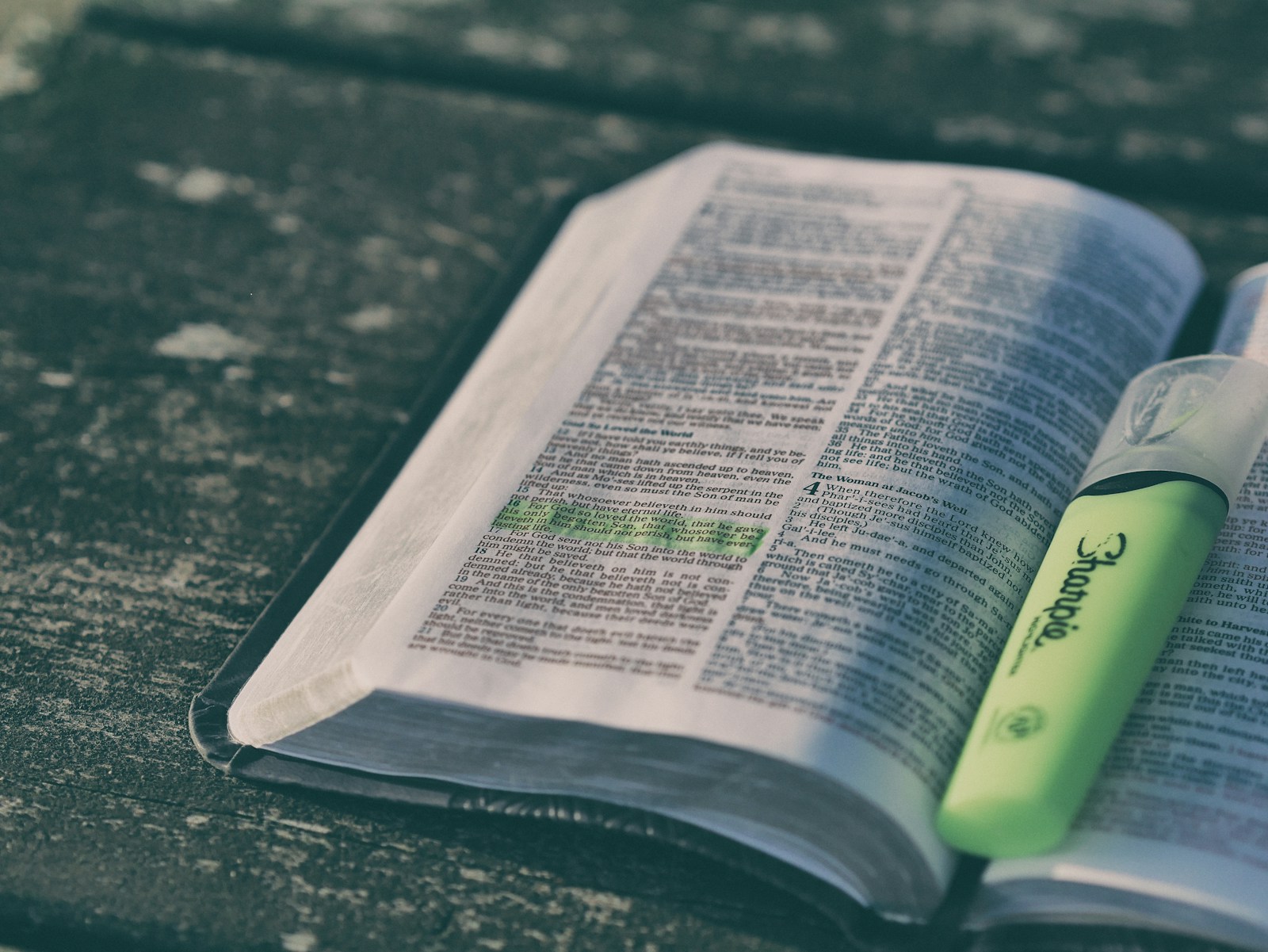
To add a bible reading plan widget on iPhone, long-press the home screen, tap the + in the top-left, search your reading-plan app (YouVersion has one), and place the widget. It surfaces today's passage so you don't have to remember to open the app. Pair it with a verse on the lock screen and the plan stops slipping.
Reading plans rarely fail because they're too hard. They fail because they're invisible. You start January 1st strong, miss two days in week three, and the plan quietly disappears behind 40 other apps. A bible reading plan widget on your iPhone fixes the one thing willpower can't: it puts the next step where your eyes already are.
The average American picks up their phone 144 times a day, per Reviews.org's 2026 Phone Habits report. A widget turns a fraction of those glances into a nudge toward today's chapter instead of today's feed.
Why a widget beats a daily reminder
Notifications are easy to swipe away and easier to ignore. A bible reading plan widget is different — it's ambient. It doesn't interrupt you; it just sits there, quietly showing the next reading every time you unlock. Habit researchers call this environment design: you don't fight the urge to forget, you remove the chance to.
Tip
Put the widget on your first home screen, above the fold — not on a secondary page you have to swipe to. If you have to hunt for it, it's already lost.
Home screen vs. lock screen — use both
Home screen widget — bigger, shows the day's passage reference and your streak. Best for the moment you sit down to read.
Lock screen widget — tiny, glanceable, lives above the clock. Best for the 144 micro-checks where you just need the nudge.
The pairing — a reading-plan widget for what to read, and a Scripture lock screen for carrying one verse from it through the day.
The 60-second setup
- 1
Pick a plan inside your Bible app — YouVersion's plans are free and the widget is built in.
- 2
Long-press an empty area of the home screen until the icons jiggle.
- 3
Tap the + in the top-left corner.
- 4
Search the app name, choose a widget size, and tap Add Widget.
- 5
Drag it to the top row. Then repeat from the lock screen (long-press lock screen → Customize → add widget).
"This Book of the Law shall not depart from your mouth, but you shall meditate on it day and night."
Where this gets hard
Most reading-plan widgets do one job: they tell you what to read and link you into the app. That's useful at 7am. But the verse you read at 7am is usually gone by 7:05 — the widget has done its job and gone quiet, and the passage doesn't follow you into the day. Streak pressure makes it worse: miss a day, watch the counter reset, feel the guilt, quit. The plan becomes about the streak instead of the Word.
This is the gap FaithWall fills. It isn't a reading-plan app — it's the exposure layer. You read the chapter in your plan, then let FaithWall keep one verse from it on your lock screen all day, rotating through a themed pack so it stays alive instead of fading by mid-morning. The reading happens once; the meditation happens 144 times.
Important
A reading-plan widget is for input — getting you into the text each morning. A Scripture lock screen is for retention — keeping one line of that text in front of you until it sticks. They're different jobs, and the people who actually finish a plan tend to run both.
Pick a plan you can actually keep
One-year whole Bible — ambitious; pair it with the widget or you will fall behind.
Chronological — reads events in the order they happened; great for first-timers.
New Testament in 90 days — short, winnable, builds momentum for a longer plan.
Gospels on repeat — one Gospel a month; depth over distance.
Pro move: pair the widget with a Quiet Time Focus mode (iOS 16+) set for your reading slot. It silences notifications, swaps to a calm wallpaper, and makes the widget the only thing competing for your attention for 20 minutes.
If you're still choosing an app to host the plan, our pick is in best free Bible app for iPhone. Once you're reading daily, how to highlight verses on iPhone makes the passages stick, and Bible memorization apps move them from screen to heart. For the full toolkit, see the Bible study on iPhone pillar guide.
Carry the verse, not just the checkbox
Free, 60 seconds, no account. FaithWall keeps one verse from today's reading on your lock screen all day — the exposure layer your reading plan is missing.
Keep reading
Audio Bible App iPhone Background: Play It All Day Without Opening Anything
How to run an audio bible app in the background on iPhone — the apps, the Control Center setup, and the one thing audio alone can't do that keeps Scripture in view.
July 13, 2026

One Year Bible Plan iPhone: The Setup That Survives Past February
A one year bible plan iphone setup that actually finishes — which plan to pick, the ~15-minute daily math, and how to keep the next reading impossible to forget.
June 19, 2026
How to Highlight Verses on iPhone: The Tap Sequence and the System That Makes It Stick
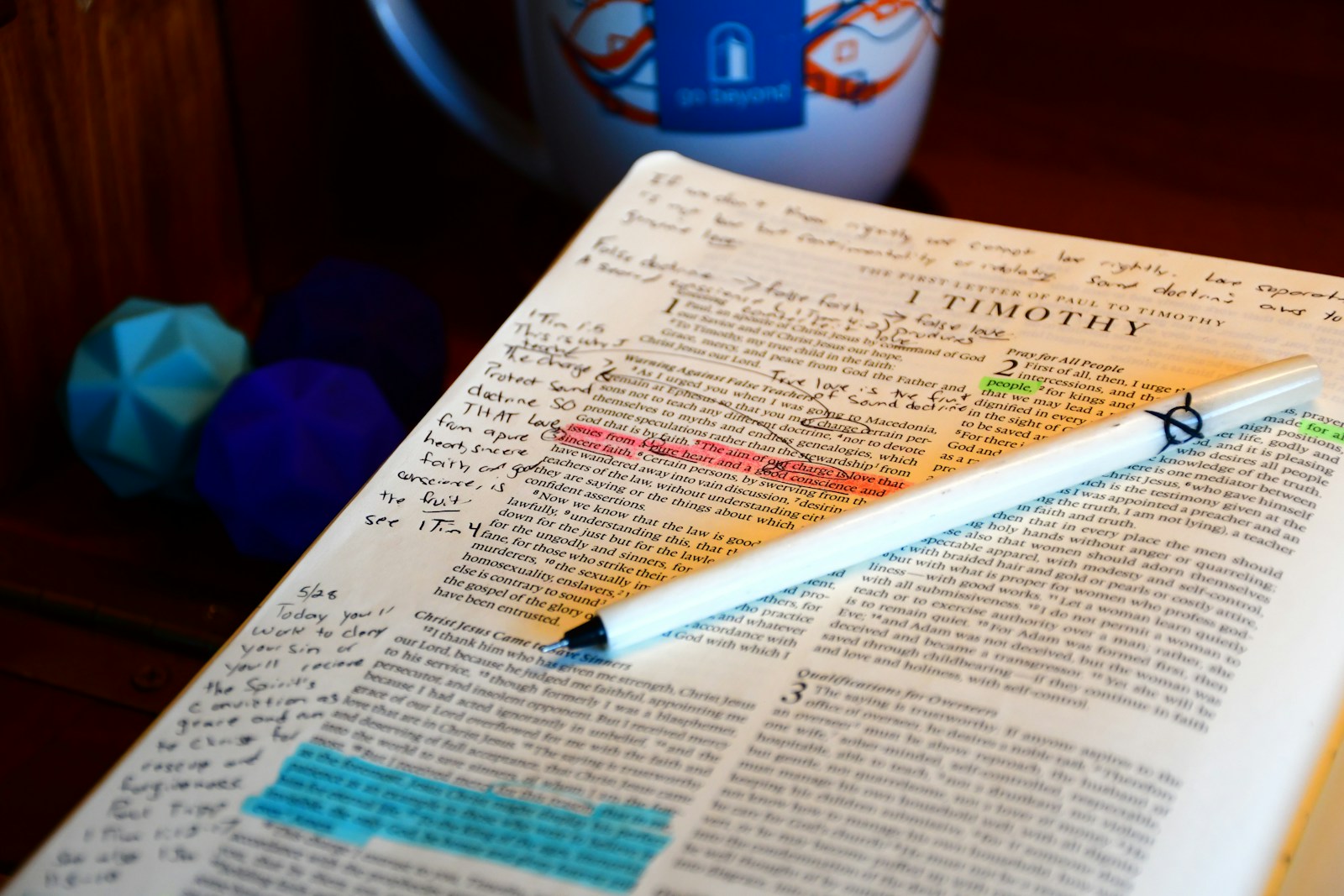
How to highlight verses on iphone — the exact taps in YouVersion, Olive Tree, Bible Gateway, plus the color-coding system that keeps highlights useful.
June 2, 2026